> ## Documentation Index
> Fetch the complete documentation index at: https://help.latchel.com/llms.txt
> Use this file to discover all available pages before exploring further.
# Resident Dashboard Overview
> Latchel is here to help with the coordination and scheduling of service requests. And you can do this as a resident by accessing your dashboard.
### **Accessing Your Dashboard**
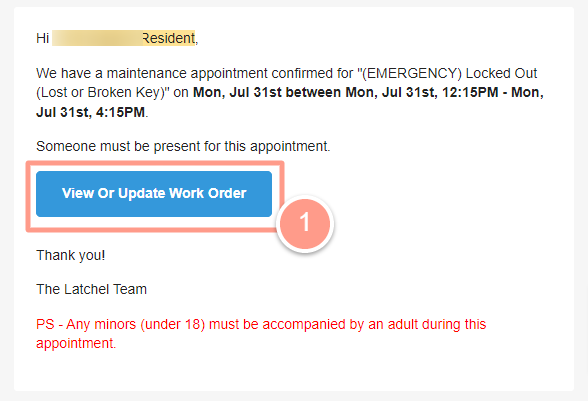
Access your dashboard via the email or text message you received from Latchel, after submitting your work order request. In the example below, you may click **View or Update Request**.
 If it is your first time submitting a maintenance request and you haven't visited your Resident Maintenance Dashboard yet, feel free to **call or send an SMS** to **206-717-8374**. Our friendly Latchel Service Operation Associate will connect you and provide your **resident public URL dashboard**.
Then you will be directed to a work order page. Click the **My Maintenance** icon at the upper right-hand corner of your screen to access the Maintenance Dashboard.
If it is your first time submitting a maintenance request and you haven't visited your Resident Maintenance Dashboard yet, feel free to **call or send an SMS** to **206-717-8374**. Our friendly Latchel Service Operation Associate will connect you and provide your **resident public URL dashboard**.
Then you will be directed to a work order page. Click the **My Maintenance** icon at the upper right-hand corner of your screen to access the Maintenance Dashboard.
 Once you're in the Maintenance dashboard, you will find all the work orders that you have requested through Latchel. These work orders are categorized depending on their statuses, such as **Action Required**, **Scheduled**, **In Progress**, and **Done**.
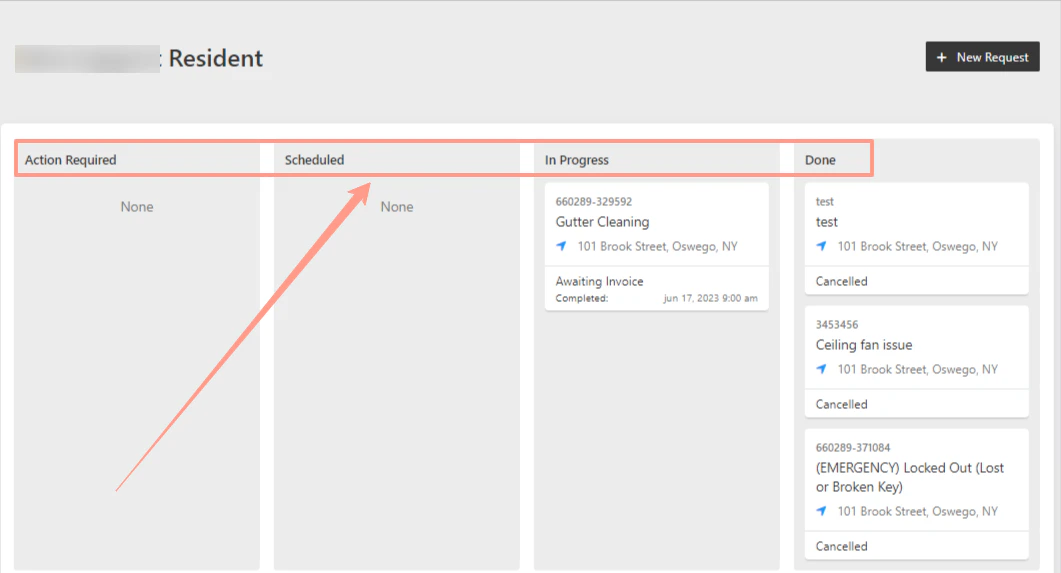 * **Action Required** - Before the job is sent to the service provider Latchel is requiring action on your end to move the job forward.
* **Scheduled** – A job in the scheduled status means that we’ve already scheduled the arrival time for your service provider. These can be 1-hour to 4-hour time windows depending on your availability.
The **appointment window** shown reflects when the service provider is expected to arrive, **NOT** the total time the work will take. Depending on the type of repair, **the service provider may need to stay and complete the job beyond that window.**\
\
For example, if your appointment window is 12:00 PM–4:00 PM, the service provider may arrive any time within that period and continue working beyond 4:00 PM if the repair takes longer to complete.
* **In Progress** – A job In Progress means that Latchel is waiting to get confirmation that work was completed by the service provider. At the end of the work date window, Latchel’s software automatically sends an SMS and an email to you and the service provider to confirm completion.
* **Done** – A job in the Done status means that the work has been completed.
### **Managing Maintenance Requests**
To explore **more actions** you can take within a **maintenance request**, check out our full guide on:
This section provides the list of things you can do to manage a maintenace request.
### **Resident Benefits**
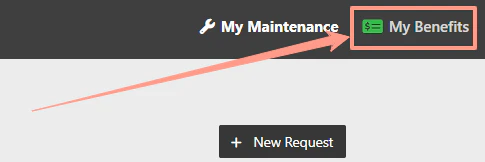
To **learn more and take advantage of the resident benefit**, click the **My Benefits** icon at the top right corner of the page.
* **Action Required** - Before the job is sent to the service provider Latchel is requiring action on your end to move the job forward.
* **Scheduled** – A job in the scheduled status means that we’ve already scheduled the arrival time for your service provider. These can be 1-hour to 4-hour time windows depending on your availability.
The **appointment window** shown reflects when the service provider is expected to arrive, **NOT** the total time the work will take. Depending on the type of repair, **the service provider may need to stay and complete the job beyond that window.**\
\
For example, if your appointment window is 12:00 PM–4:00 PM, the service provider may arrive any time within that period and continue working beyond 4:00 PM if the repair takes longer to complete.
* **In Progress** – A job In Progress means that Latchel is waiting to get confirmation that work was completed by the service provider. At the end of the work date window, Latchel’s software automatically sends an SMS and an email to you and the service provider to confirm completion.
* **Done** – A job in the Done status means that the work has been completed.
### **Managing Maintenance Requests**
To explore **more actions** you can take within a **maintenance request**, check out our full guide on:
This section provides the list of things you can do to manage a maintenace request.
### **Resident Benefits**
To **learn more and take advantage of the resident benefit**, click the **My Benefits** icon at the top right corner of the page.
 **For more information about Resident Benefits, check:**
Find out how to log in and access all your available Resident Benefits.
**For more information about Resident Benefits, check:**
Find out how to log in and access all your available Resident Benefits.