
What Your Tech Can Do
One-Tap Arrival & Completion
Tap once to clock in when they arrive, tap once to clock out when they’re done — right from their Latchel dashboard.
Hands-Free with Voice
Just as easily, say “I’m here” to clock in and “I’m done” to submit the timesheet — no screen required.
Mid-Job Clock Out
Techs can clock out mid-job if they need to step away, then clock back in when they return — the visit is still tracked accurately.
Photos & Materials
Techs can attach photos of the completed work and log the materials they used directly on the timesheet.
If a tech forgets to clock out, Latchel defaults to logging one hour of time. If they clock out after more than two hours, a quick confirmation step appears to make sure the logged time is accurate.
What You’ll See as a Property Manager
On any work order assigned to an in-house tech, the Invoices tab now appears as a Timesheets tab instead. There, you’ll find:- Clock-in and clock-out times for every visit
- Total time captured across all visits on that job
- Materials used, with associated costs
Steps to Activate
Clock In / Clock Out and Timesheets are already live for in-house techs — there’s nothing to turn on for the base feature. The only setup step is optional:Open the tech's Service Provider profile
Go to the profile for the in-house tech you’d like to configure.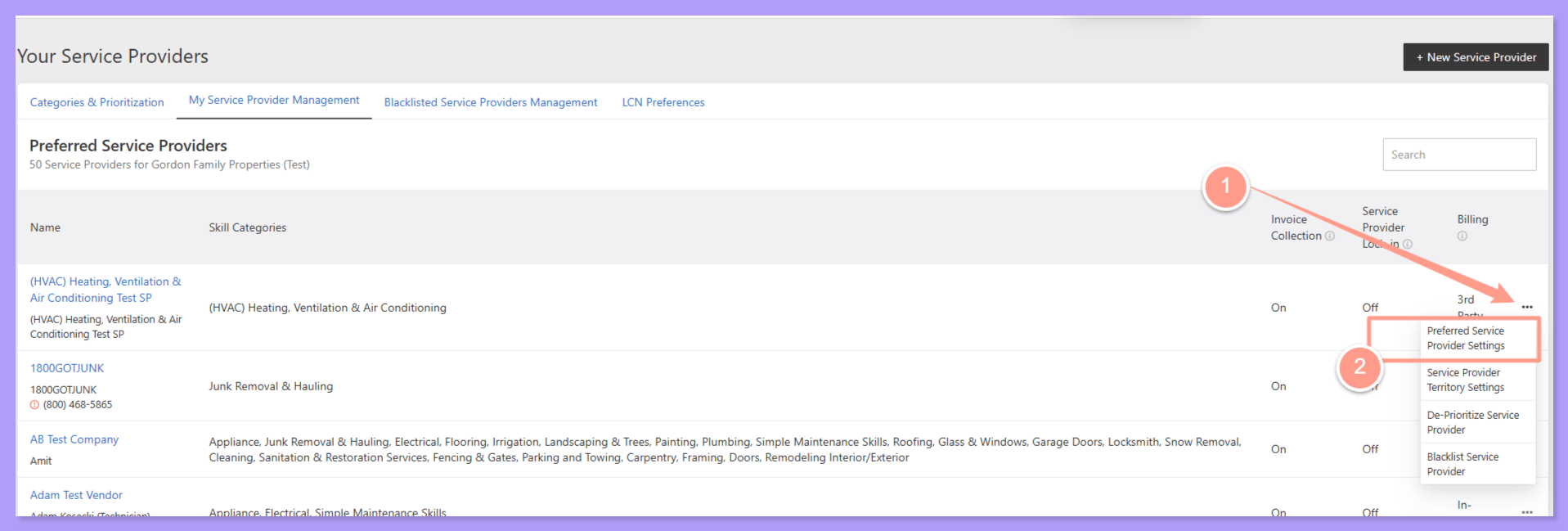
Toggle on Require Detailed Timesheets (optional)
If you want to make sure this tech always attaches photos of completed work, switch on Require Detailed Timesheets in their profile.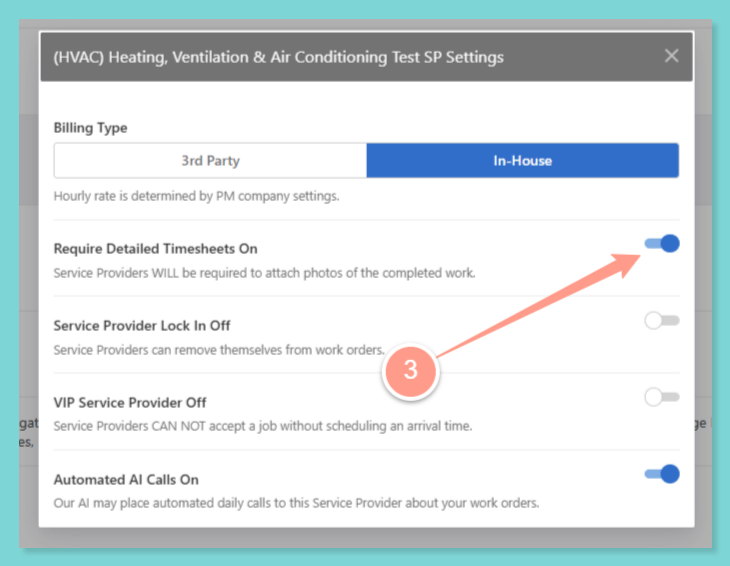
Your tech clocks in and out as usual
From here, your tech just taps (or says “I’m here” / “I’m done”) to log each visit — no further setup needed on your end.
Requirements & Eligibility
This feature is included for every Latchel customer today, with no separate signup or upgrade required.
Frequently Asked Questions
Does this replace Invoices for in-house techs?
Does this replace Invoices for in-house techs?
Yes, functionally. On work orders assigned to an in-house tech, the tab that used to say Invoices now says Timesheets, and it’s where you’ll find clock-in/out times, total time, and materials for that job.
What happens if my tech forgets to clock out?
What happens if my tech forgets to clock out?
Latchel defaults to logging one hour of time automatically. If the eventual clock-out happens more than two hours after clock-in, a confirmation step appears so the final logged time stays accurate.
Can a tech fix a mistimed entry?
Can a tech fix a mistimed entry?
Yes. Techs can correct a mistimed clock-in or clock-out entry from their dashboard.
Can techs use their voice instead of tapping?
Can techs use their voice instead of tapping?
Yes — saying “I’m here” clocks them in, and “I’m done” submits the timesheet, so they don’t need to stop and use a screen.
What does Require Detailed Timesheets do?
What does Require Detailed Timesheets do?
Turning this on for a specific in-house tech’s profile means they’ll be prompted to attach photos of the completed work along with their timesheet.
Does this apply to third-party vendors too?
Does this apply to third-party vendors too?
No — this feature is specifically for in-house techs. Third-party service providers continue to use the standard invoicing workflow.
Can techs still log materials and costs?
Can techs still log materials and costs?
Yes. Materials used on the job, along with their costs, can be logged directly on the timesheet and will show up in your Timesheets tab.