When a technician in an contact rotation is unavailable, an absence should be recorded to keep the rotation running smoothly and avoid missed alerts. Absences can be scheduled in advance or logged as needed, and property managers can manage them anytime.
When to scheduled absences?Use for planned time off such as vacations, appointments, or leave. Set this up ahead of time with a known start and end date.
Follow the steps below to record an absence for a technician in an contact rotation.Go to the Contact Rotations page and open the rotation that includes the technician who will be absent. Click Edit to access the scheduled rotation.
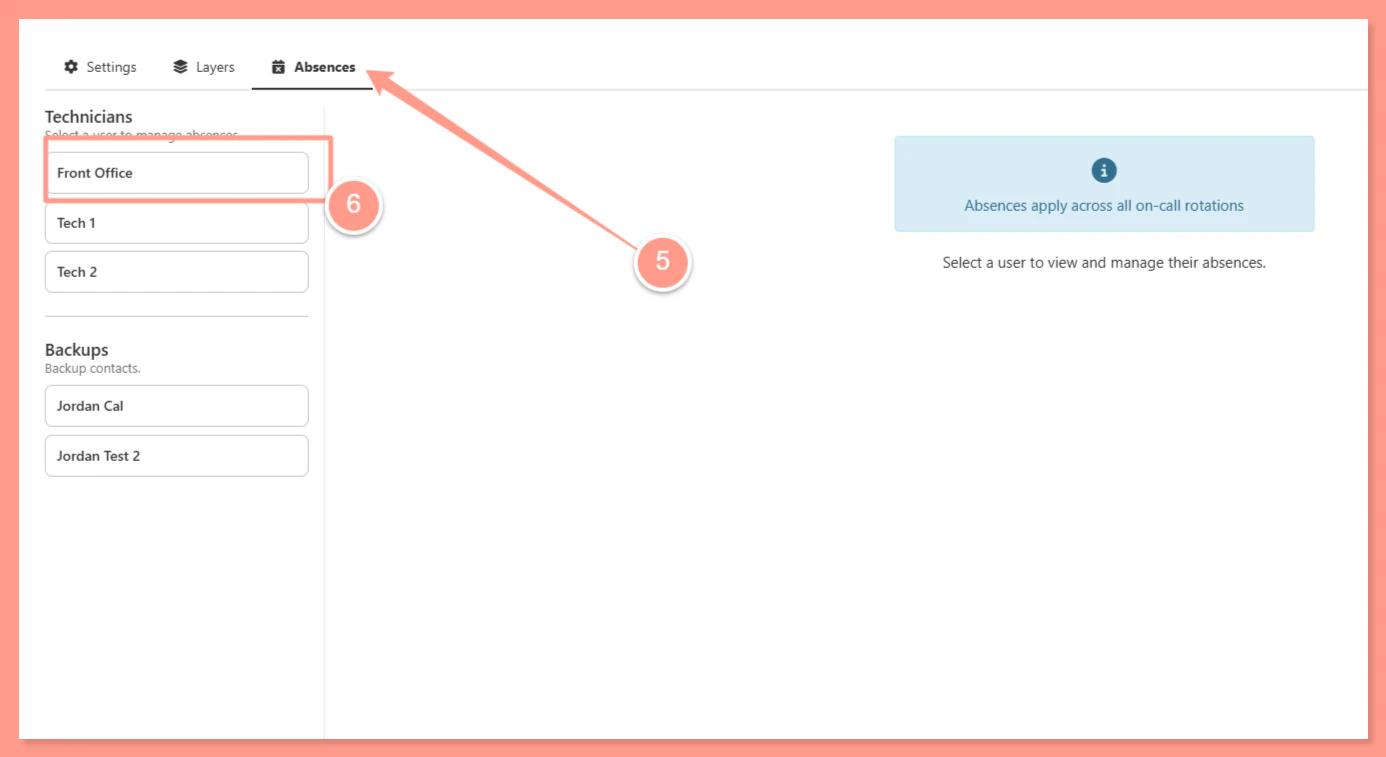
Locate the layer that contains the technician. Each layer lists the technicians assigned to that escalation tier. Click on the technician’s name or profile to access their absence settings.
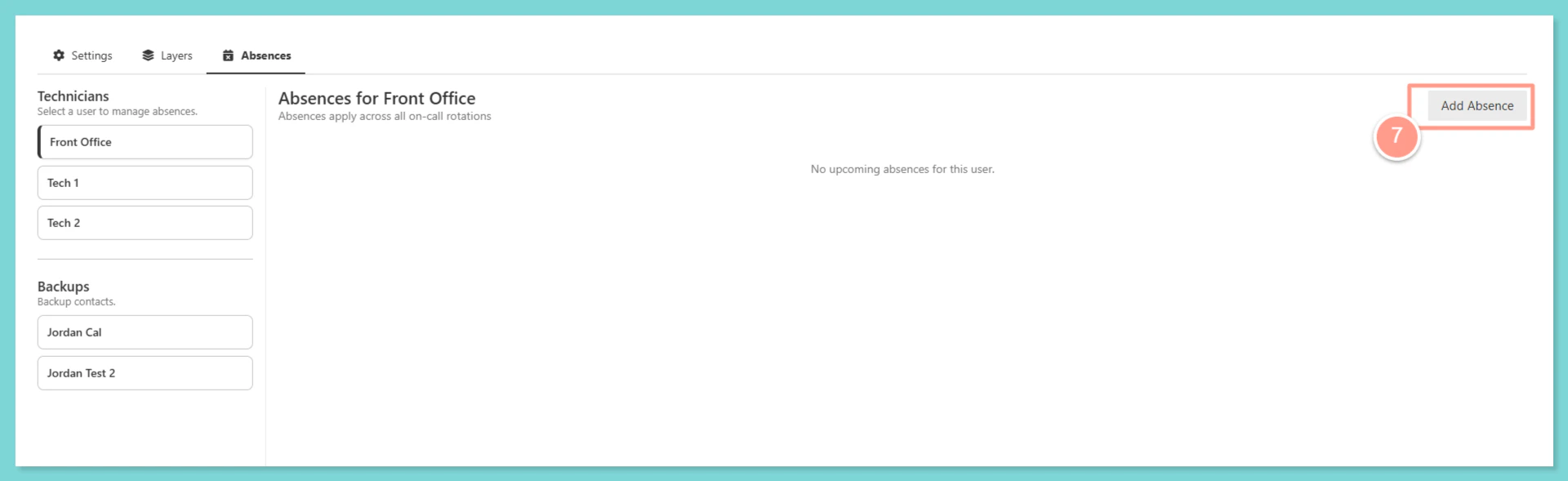
Within the technician’s profile or layer settings, locate the Absences section and click Add Absence to open the absence form.
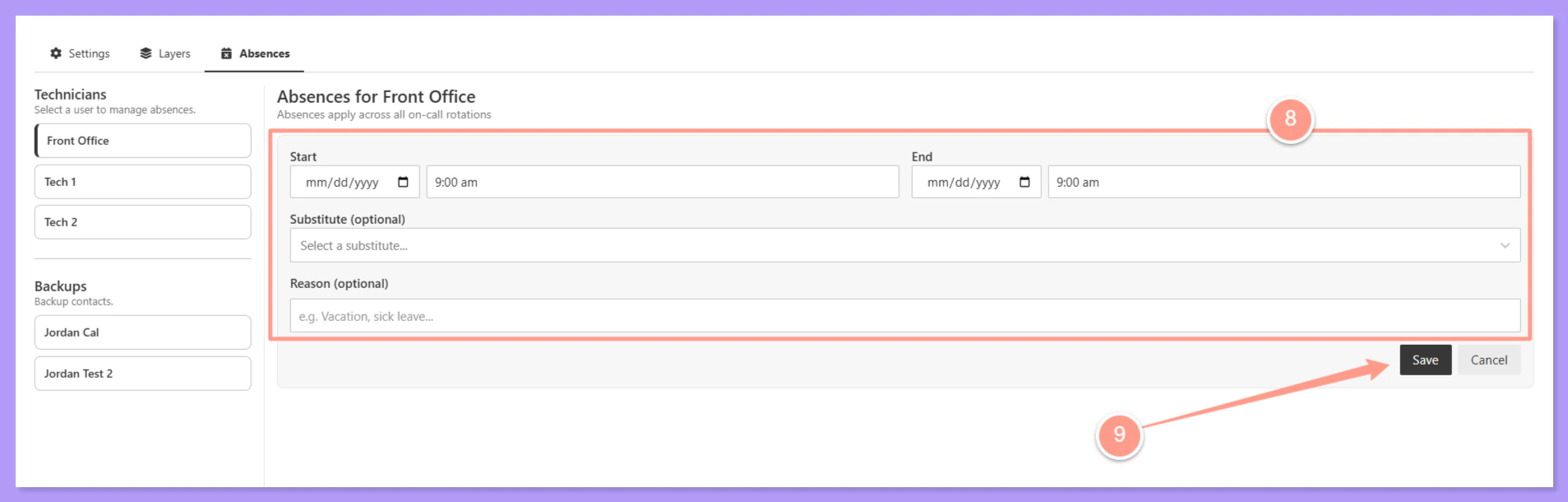
Enter the start date and end date of the absence. Both dates are required — if the end date is unknown for an unplanned absence, enter an estimated date and update it later.
Both a start and end date are always required. The system will not save an absence without both fields filled in.
Optionally, select a substitute technician who will cover the absent technician’s spot during the absence period. If no substitute is selected, the rotation will skip this technician and escalate normally to the next layer.
The substitute must also be an in-house technician for the PM company to appear in the selection list.Leaving this blank is acceptable — the contact rotation will continue escalating through the remaining layers.
Click Save to confirm the absence. The technician will be automatically skipped during the absence period, and the substitute (if assigned) will receive alerts in their place.