
How to Submit a New Maintenance Request
Go to your resident dashboard
First, navigate to your resident dashboard by following the steps in the help guide:
Resident Dashboard Overview
Open your dashboard and see where each of your maintenance requests stands.
You can obtain your unique Latchel maintenance number from your property manager.
Click New Request
From your dashboard page, click the New Request icon located on the right side of the page.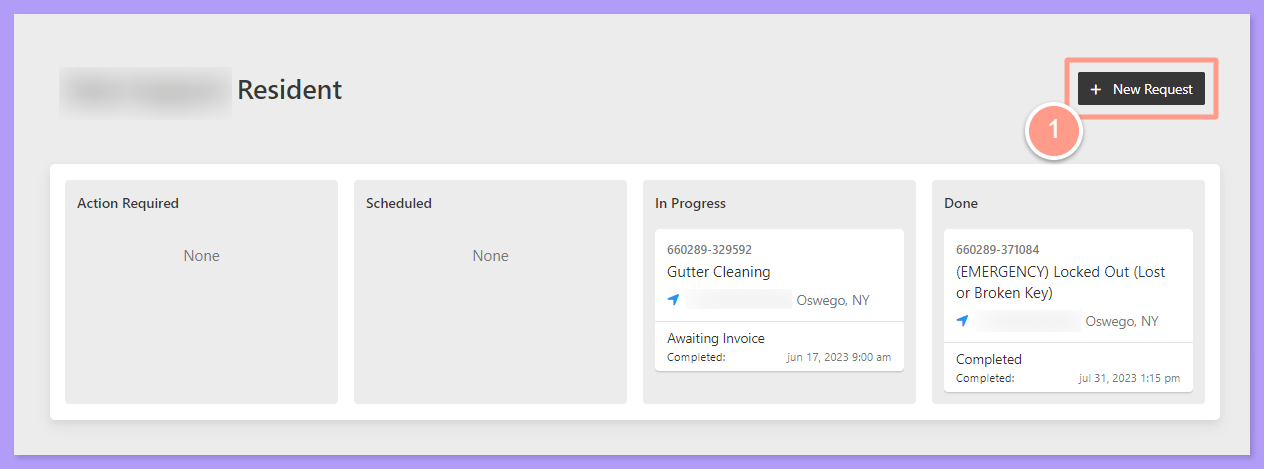
Confirm your address
A new page will open. If the address shown is correct, click the Select button. If you want to enter a new address, click Enter it here or select Start Over to add new information.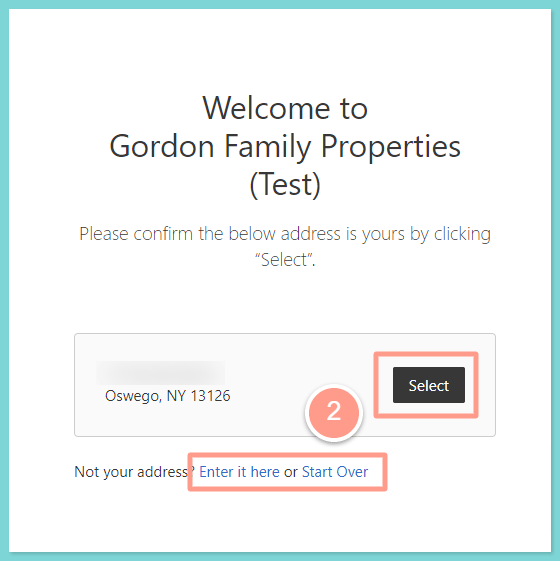
Click Submit a service request
Once you have selected your address, click Submit a service request.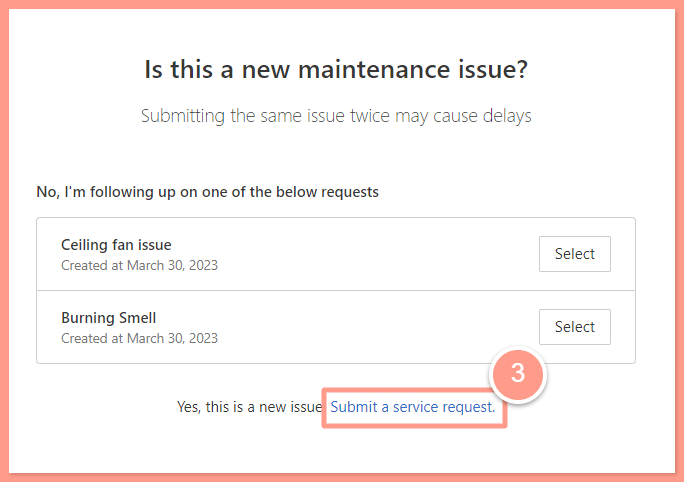
Choose the request type
From here, you can choose if you need a Maintenance Request or a Home Assistant, then click the Next Question button at the upper right corner.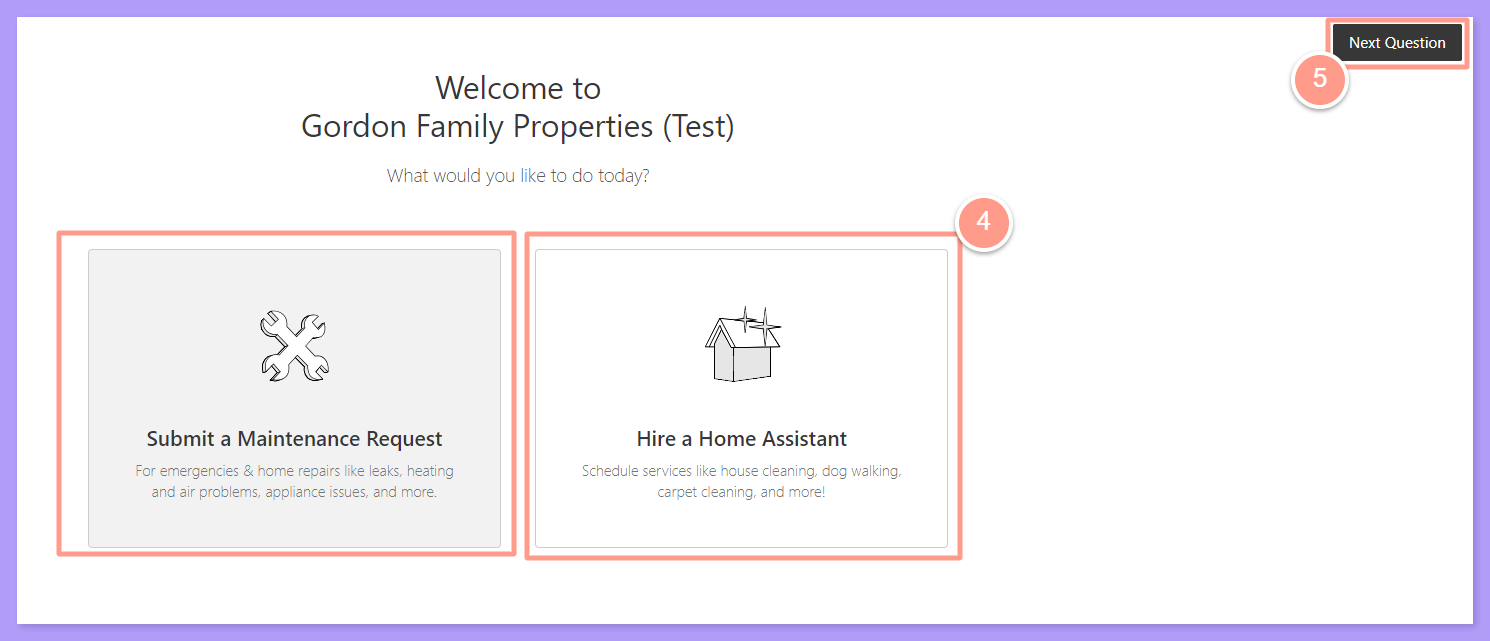
Answer the questions and submit
On each subsequent page, please answer the questions related to your concern and provide your availability. Then, click the Next Question button to proceed to the following steps. Once all the necessary information is provided, click Submit Service Request.
The work order will then be set to “Pending” status and will update you once a service provider confirms the appointment slot. You can also click View Work Order Details to check the status of your requested work order.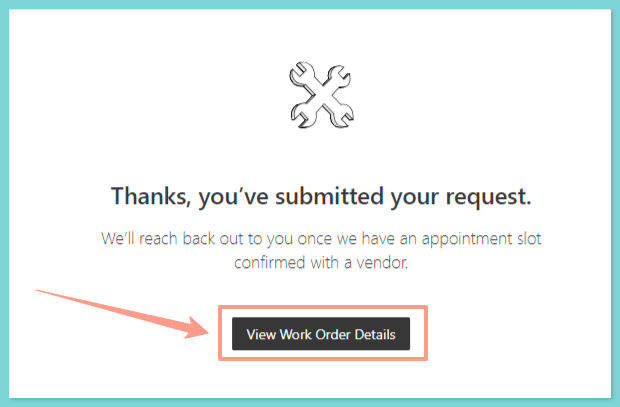
The work order will then be set to “Pending” status and will update you once a service provider confirms the appointment slot. You can also click View Work Order Details to check the status of your requested work order.