Disabling Tenant to Create Service Issues
Open System Web Preferences
Go to your Admin page in your Rent Manager account. Then open System Web Preferences.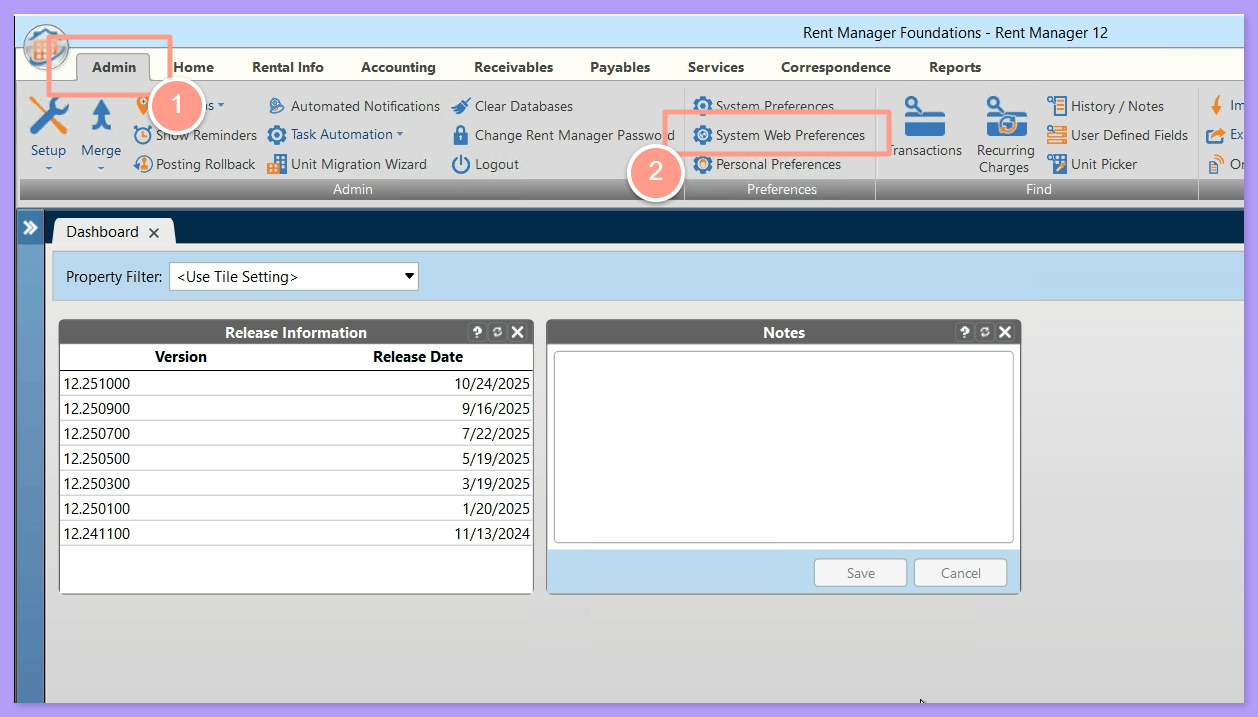
Select Tenant Web Access
Select Tenant Web Access from the list on the left.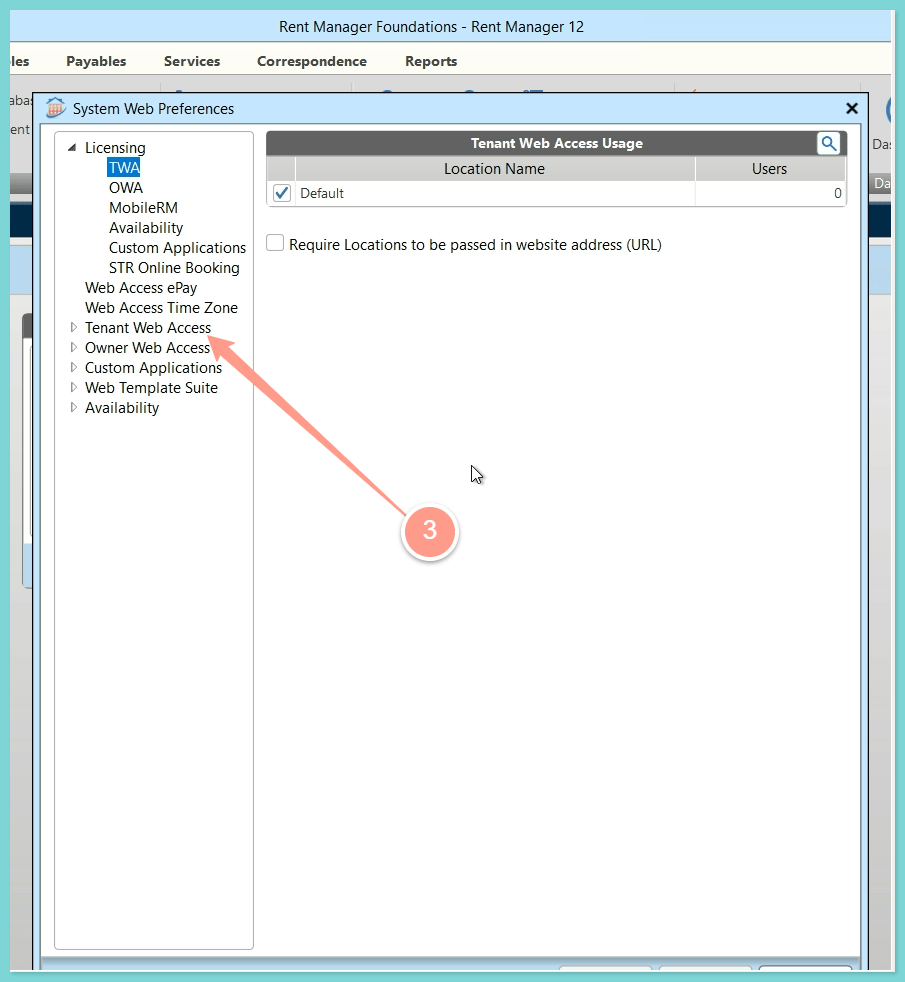
Select Service Issues
Select Service Issues from the options presented.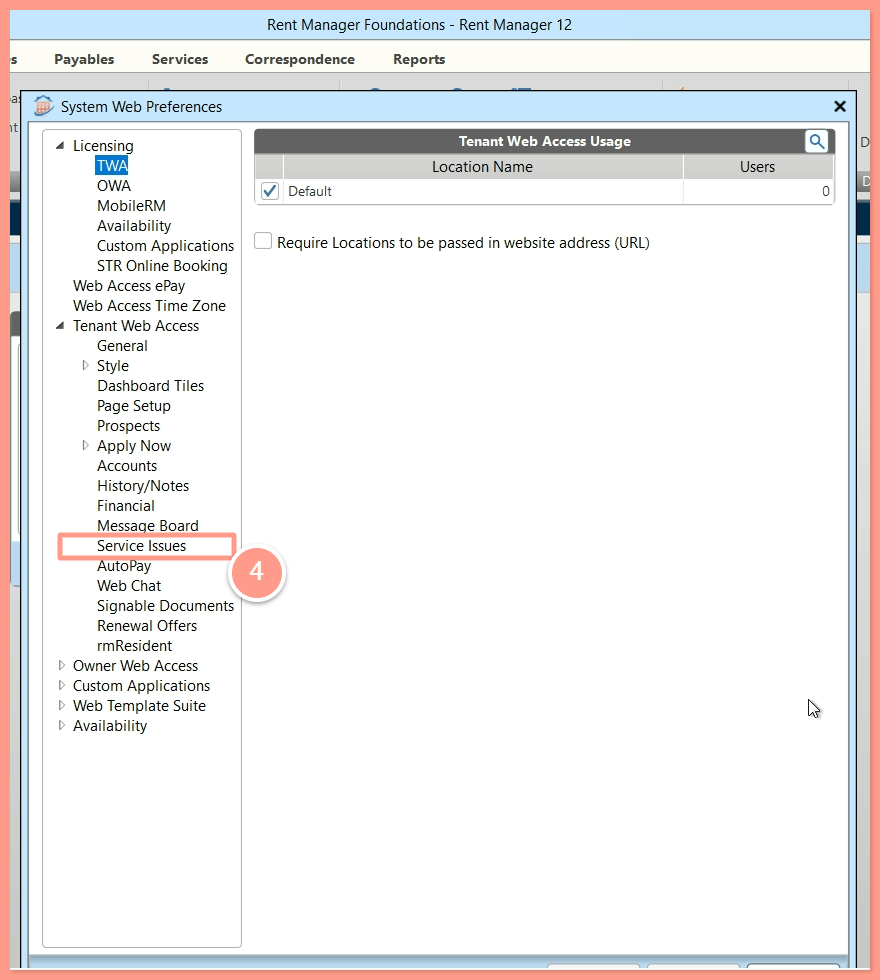
Uncheck Allow Tenant to Create Service Issues
Uncheck the box labeled Allow Tenant to Create Service Issues to disable this feature, then click Apply and Save.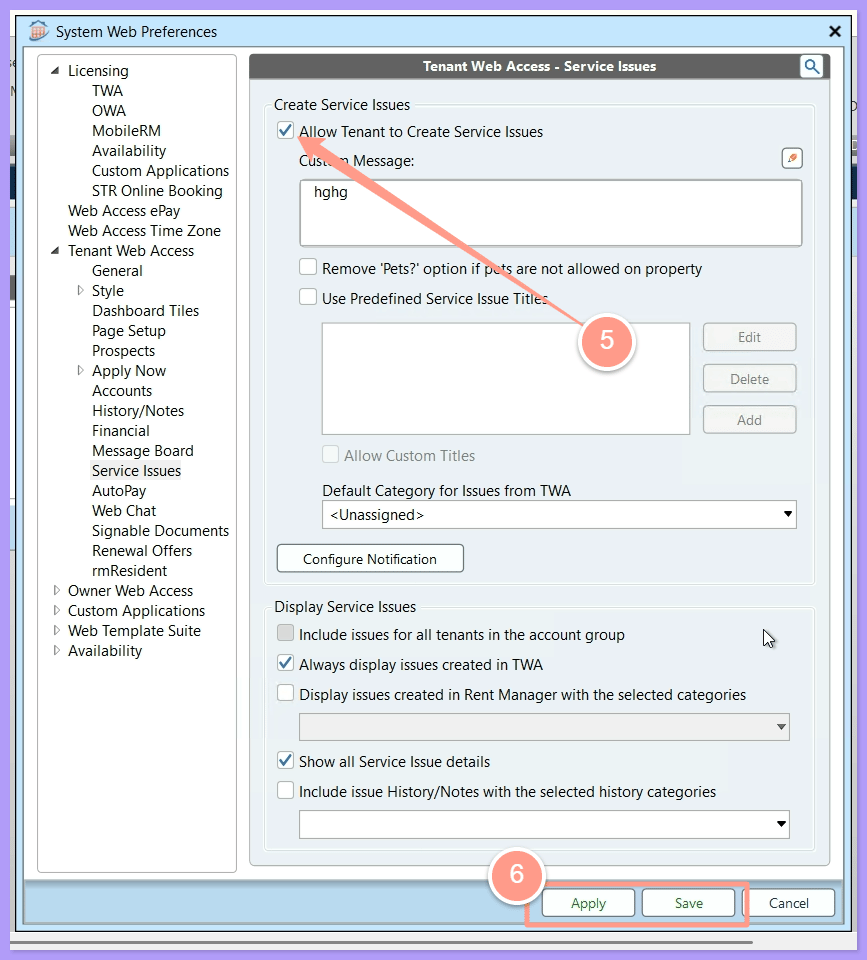
Redirect Maintenance: Before Login to Rent Manager
After disabling tenant access to create maintenance requests in Rent Manager, add a login page banner to redirect residents to Latchel. This ensures requests are submitted directly through Latchel for proper tracking and faster service.Click the pencil icon
Also under System Web Preferences, go to Tenant Web Access. Then click the pencil icon.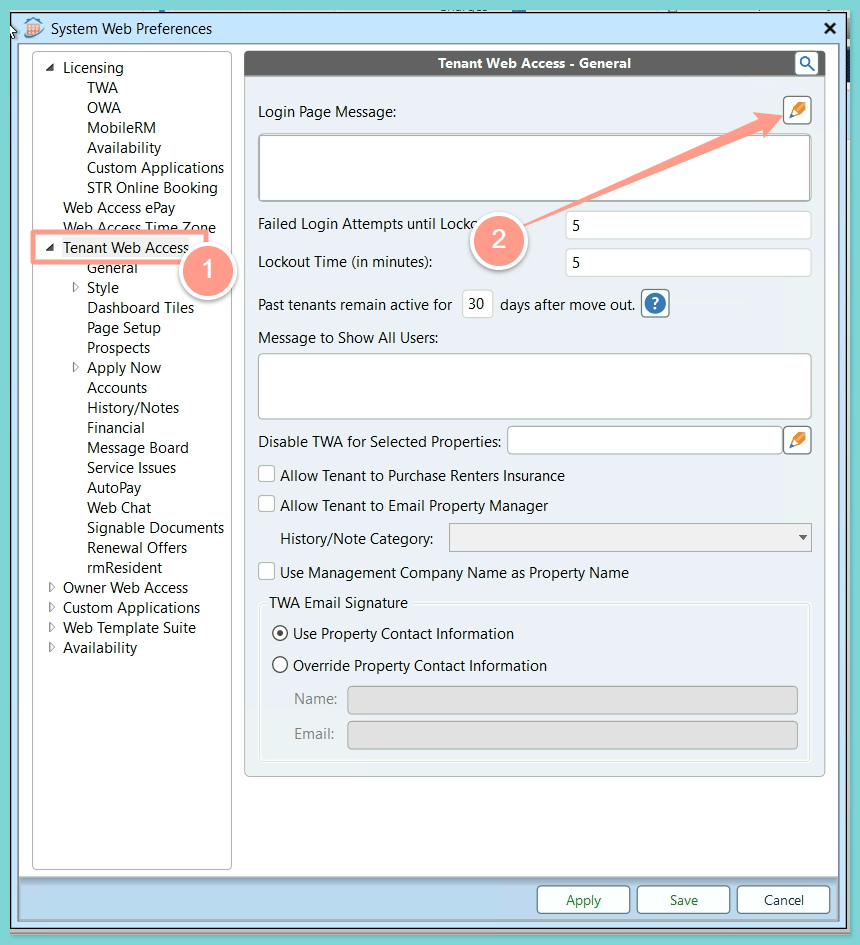
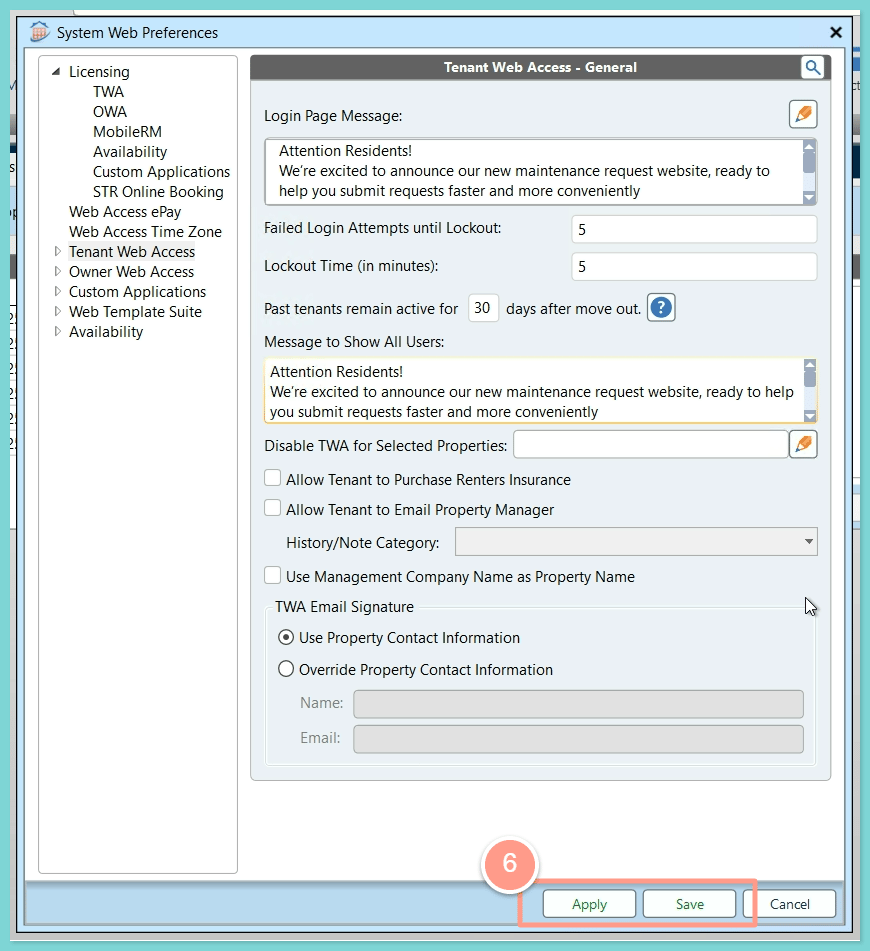
Add your banner and click OK
Then add your personalized banner as shown below. You can customize your banner however you like. Click OK to save.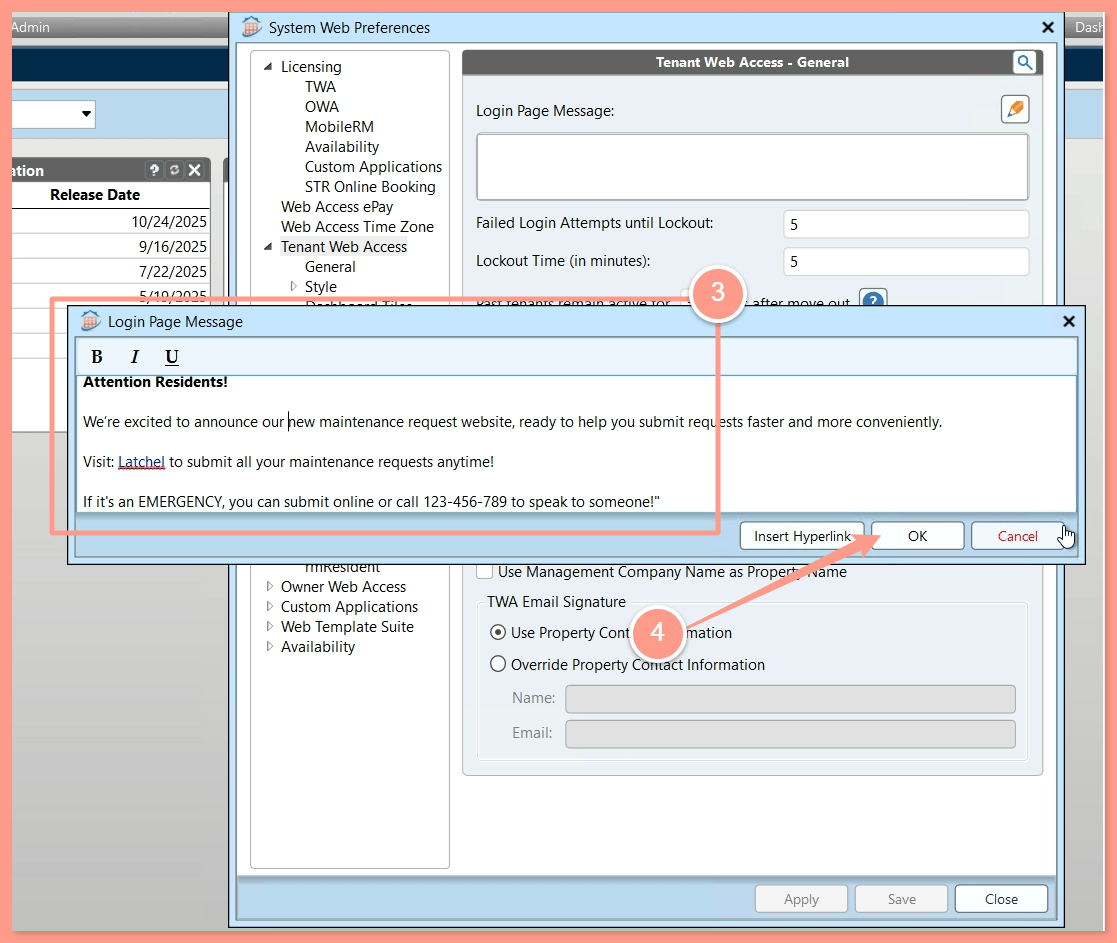
Paste the message in Message to Show All Users
Next, copy your customized login page message and paste it into the Message to Show All Users field as well.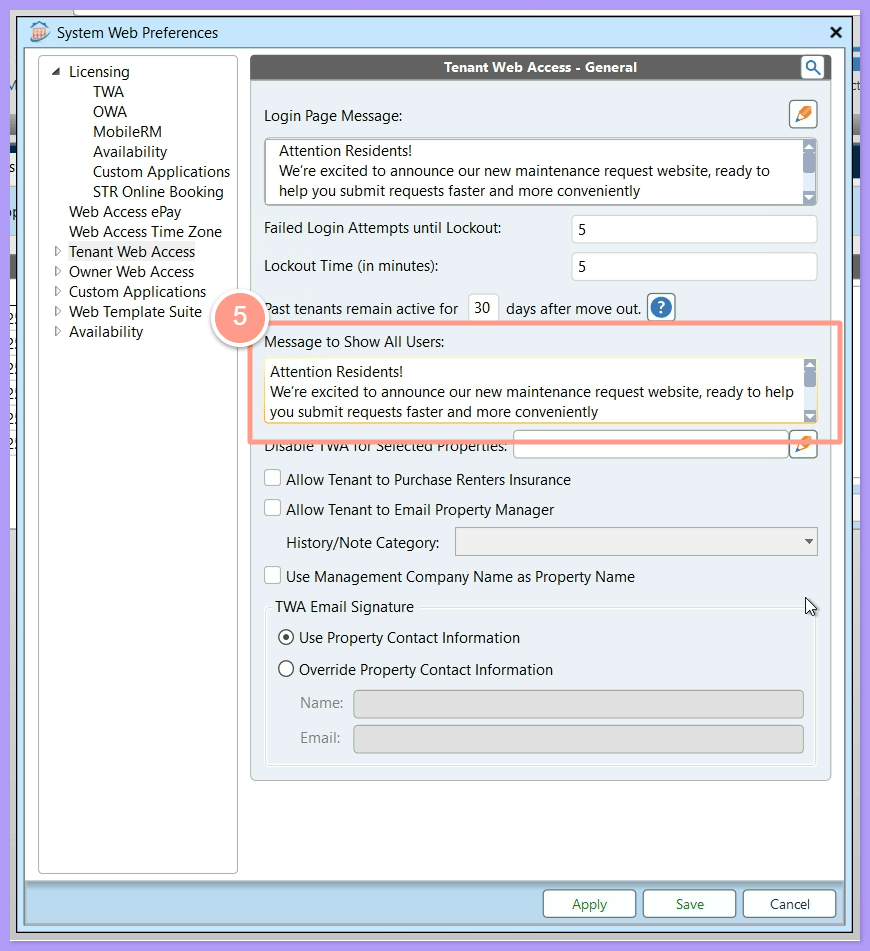
Click Apply and Save
Click Apply and Save once done.