
This guide is for service providers set up as in-house techs by the property manager (PM) they work for. If you’re a 3rd-party or preferred service provider, you’ll continue submitting invoices the way you always have — this feature doesn’t apply to your work orders. Not sure which one you are? See the FAQ below.
In other words:Show up, clock in. Finish the job, clock out. Latchel handles the rest — no paperwork, no end-of-week guessing.
What This Feature Actually Does
For work orders where you’re marked as an in-house tech, the Invoices tab on that work order becomes a Timesheets tab instead. That’s where your logged time, materials, and photos all live — visible to you and to the PM you work for. Here’s what you can do:One-Tap Clock In / Out
Tap once on your dashboard to clock in when you arrive, and tap once to clock out when you’re finished.
Hands-Free with Voice
Say “I’m here” to clock in and “I’m done” to submit your timesheet — no need to stop and use your screen.
Step Away Mid-Job
Need to leave before the job’s finished? Clock out to mark that, then clock back in when you return — your time stays accurate.
Log Photos & Materials
Attach photos of your completed work and note the materials you used, right on the same timesheet.
Steps to Clock In and Out
Open the work order.
Go to the work order you’re heading out to complete, from your Latchel dashboard.
Clock in when you arrive.
Tap the Arrive button on the work order, or simply say “I’m here” if you’re using voice. 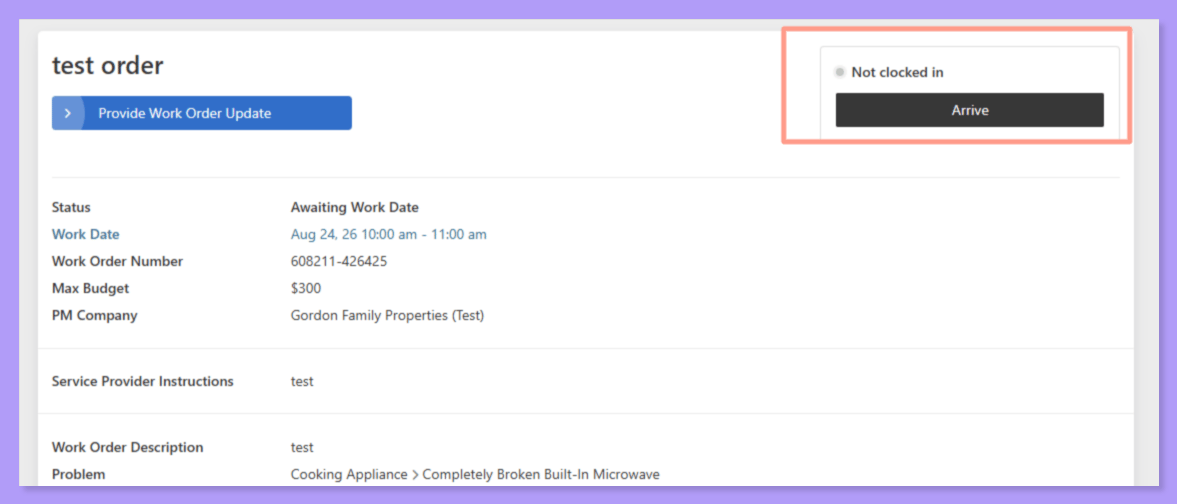
Work the job.
If you need to step away before finishing — say, to grab a part — tap Finish Work, then clock in again once you’re back. Your time away won’t count against the job.
Clock out when you're finished.
Tap Finish Work, or say “I’m done” to submit your timesheet for the visit.
Add photos or materials (optional).
Before or after clocking out, attach any photos of the completed work and note materials you used — this gets saved directly to your timesheet.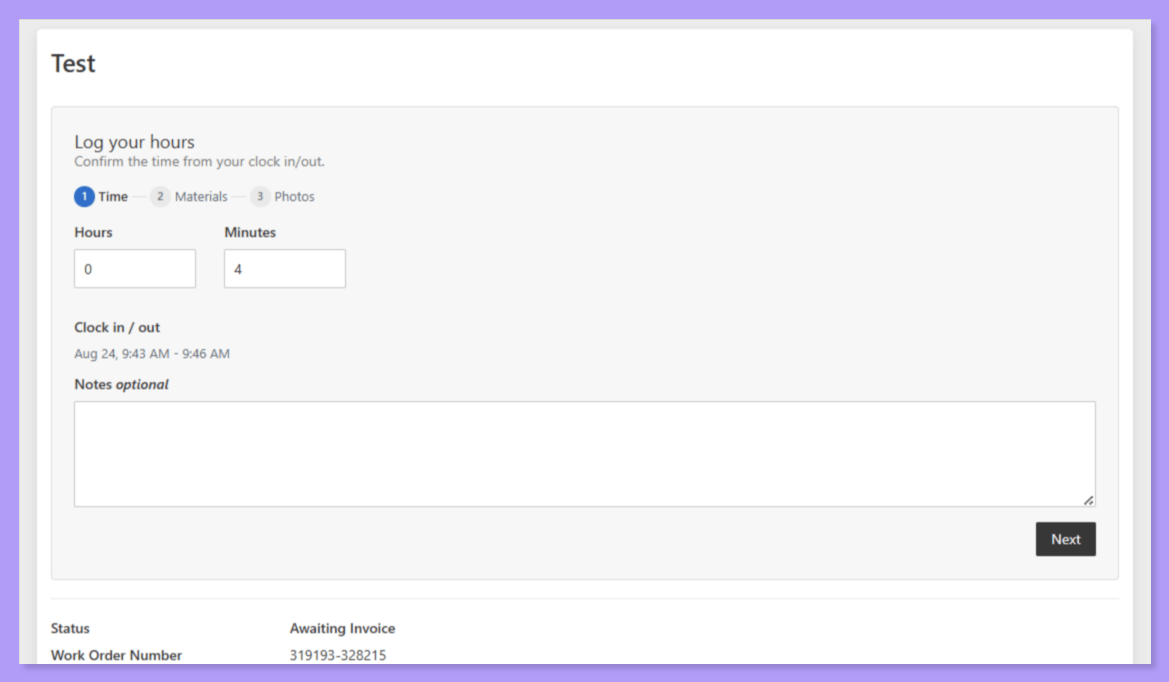
Made a mistake on a clock-in or clock-out time? You can correct a mistimed entry right from your dashboard — no need to contact the PM to fix it.You can also click Cancel if you clock in by mistake.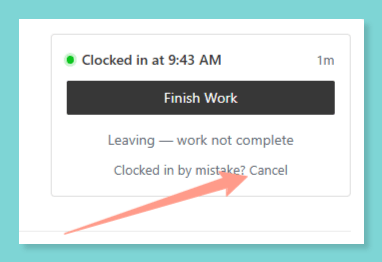
Things to Remember
There’s nothing for you to sign up for or turn on. If the PM you work for has set your Billing Type to In-house on your Service Provider profile, Clock In / Clock Out will simply appear on the work orders they assign to you.
This feature is tied to how the PM has classified you — not something you can enable yourself. If you’re set as a 3rd-party service provider, you won’t see Clock In / Clock Out; you’ll continue submitting invoices the standard way instead.
Some PMs may also turn on Require Detailed Timesheets for your profile, which means you’ll be prompted to attach photos of your completed work along with your timesheet. If you see that prompt, it’s simply a setting your PM has chosen — not something you need to configure.
Frequently Asked Questions
Can I turn this feature on myself if I don't see it?
Can I turn this feature on myself if I don't see it?
No — your Billing Type (In-house vs. 3rd-party) is set by the property manager on your Service Provider profile, not something you control from your own dashboard.
What happens if I forget to clock out?
What happens if I forget to clock out?
Latchel automatically logs 1 hour of time. If you clock out more than 2 hours after clocking in, you’ll see a confirmation step so the final logged time is accurate before it’s submitted.
Can I clock out in the middle of a job and come back later?
Can I clock out in the middle of a job and come back later?
Yes. If you need to step away before finishing — for a parts run, for example — clock out to mark that, then clock back in when you return. Your time away won’t be counted as part of the job.
Can I fix a clock-in or clock-out time if I got it wrong?
Can I fix a clock-in or clock-out time if I got it wrong?
Yes, you can correct a mistimed entry directly from your dashboard.
Do I still submit invoices?
Do I still submit invoices?
Not on work orders where you’re marked in-house — the Invoices tab becomes a Timesheets tab, and your time, photos, and materials replace the traditional invoice submission. If you’re a 3rd-party provider, you’ll keep submitting invoices as usual.
Why am I being asked to attach photos every time I clock out?
Why am I being asked to attach photos every time I clock out?
Some PMs turn on a setting called Require Detailed Timesheets, which prompts for photos of completed work on every visit. This is chosen by the PM, not something on your end.
Can the PM see my timesheet in real time?
Can the PM see my timesheet in real time?
Yes. Your logged time, materials, and photos are visible to the PM on the work order as soon as you submit them.