
In other words:You get one notification per cycle, accept every work order in it at once, and schedule or confirm them together. Invoices are still added one work order at a time.
What This Feature Does
One Notification per Cycle
You get one notification for the whole cycle, with the number of work orders in it, instead of one per work order.
Accept the Whole Cycle
Accept every work order in a cycle with one click, or decline the cycle.
Schedule and Confirm Together
Schedule all of the work orders at once and confirm completion for all of them, or open each one on its own.
Calls and Messages as One Batch
Latchel AI calls, messages, and your daily summary treat a cycle as one batch, not dozens of separate jobs.
How to Open Your Recurring Projects
Open your dashboard
Open your Latchel dashboard and click Recurring Projects to see all of them. To filter your work orders instead, use the menu next to it and choose All work orders, Only recurring projects, or Hide recurring projects.
Find the project that needs you
Your recurring projects lists each project with how often it repeats, when the next cycle starts, and what’s waiting on you, such as work orders to schedule or to confirm complete. Projects that need you show Action needed. Click View to open a cycle.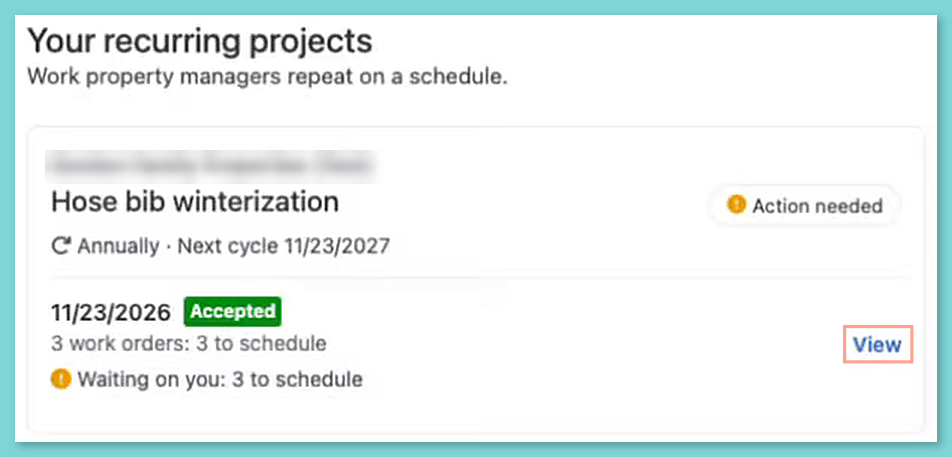
How to Accept and Schedule a Cycle
Accept or decline the cycle
Under Response needed, click Accept all to take every work order in this cycle. If you can’t take it, click Decline. Declining sends the work orders you haven’t scheduled yet to other service providers.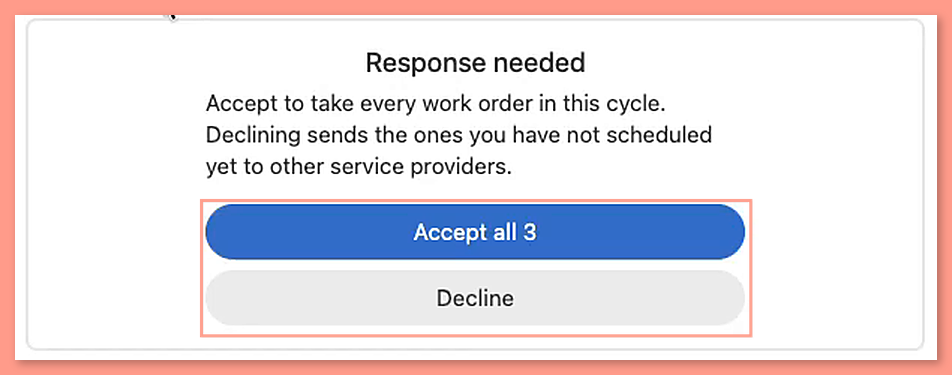
Schedule the work orders
Under Action needed, click Schedule all to schedule every work order waiting on you at once, or open each work order in the list below to schedule it on its own.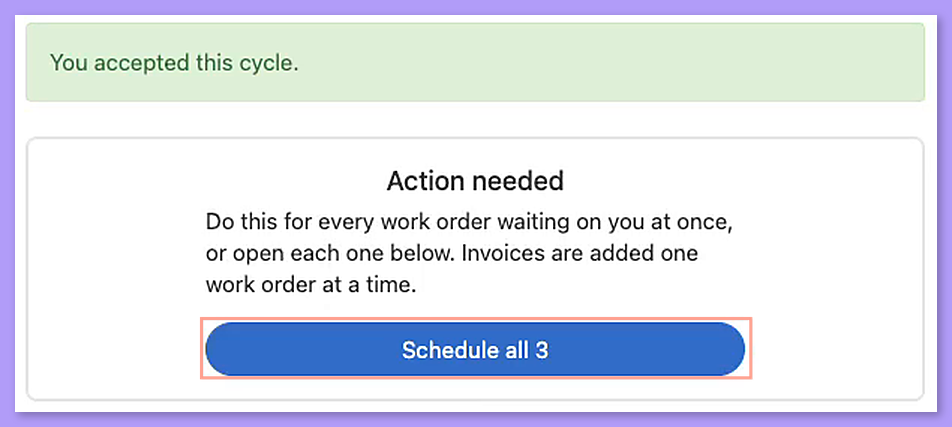
Confirm the work is complete
When the work is done, confirm completion for all of the work orders at once from Action needed, or open each one to confirm it.
Add an invoice for each work order
Invoices are added one work order at a time, because property managers need a separate invoice for each property for their owners and accounting. Open each work order to add its invoice.
Things to Remember
Each work order in a recurring project is still its own work order at its own property. You can open any of them from the list at the bottom of the cycle to see its details and status.
Frequently Asked Questions
Why did I get one notification for many work orders?
Why did I get one notification for many work orders?
The property manager set up recurring work across several properties. We send one notification per cycle, with the number of work orders in it, so you aren’t flooded with separate messages.
What happens if I decline a cycle?
What happens if I decline a cycle?
The work orders you haven’t scheduled yet are sent to other service providers.
Can I send one invoice for the whole cycle?
Can I send one invoice for the whole cycle?
No. Invoices are added one work order at a time, so each property has its own invoice for the property manager’s owner accounting.