
These steps are the same on Windows and Mac. Use the Google Chrome browser.
Before You Start
Log out of your property management software. You’ll log back in at the end.How to Remove the Old Extension
Click the Extensions button
In Chrome, click the Extensions button. It’s the puzzle-piece icon to the right of the address bar, near the top right of your screen. A list of your extensions opens.
Select Remove from Chrome
Find Latchel Data Sync in the list. Click the three dots next to it, then select Remove from Chrome.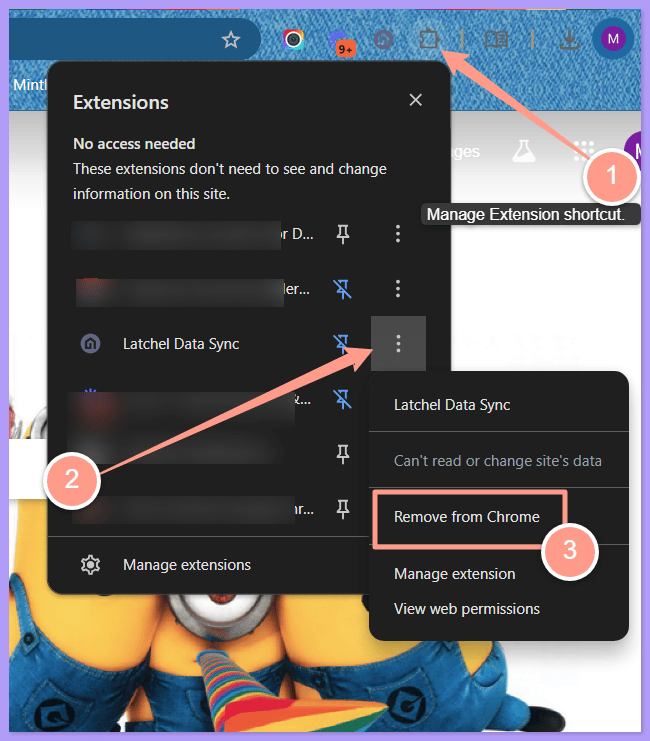
Click Remove to confirm
Chrome asks if you want to remove Latchel Data Sync. Click Remove. The extension disappears from the list.
How to Install the Latest Version
Click Add to Chrome
Open the Latchel Data Sync page in the Chrome Web Store, then click Add to Chrome.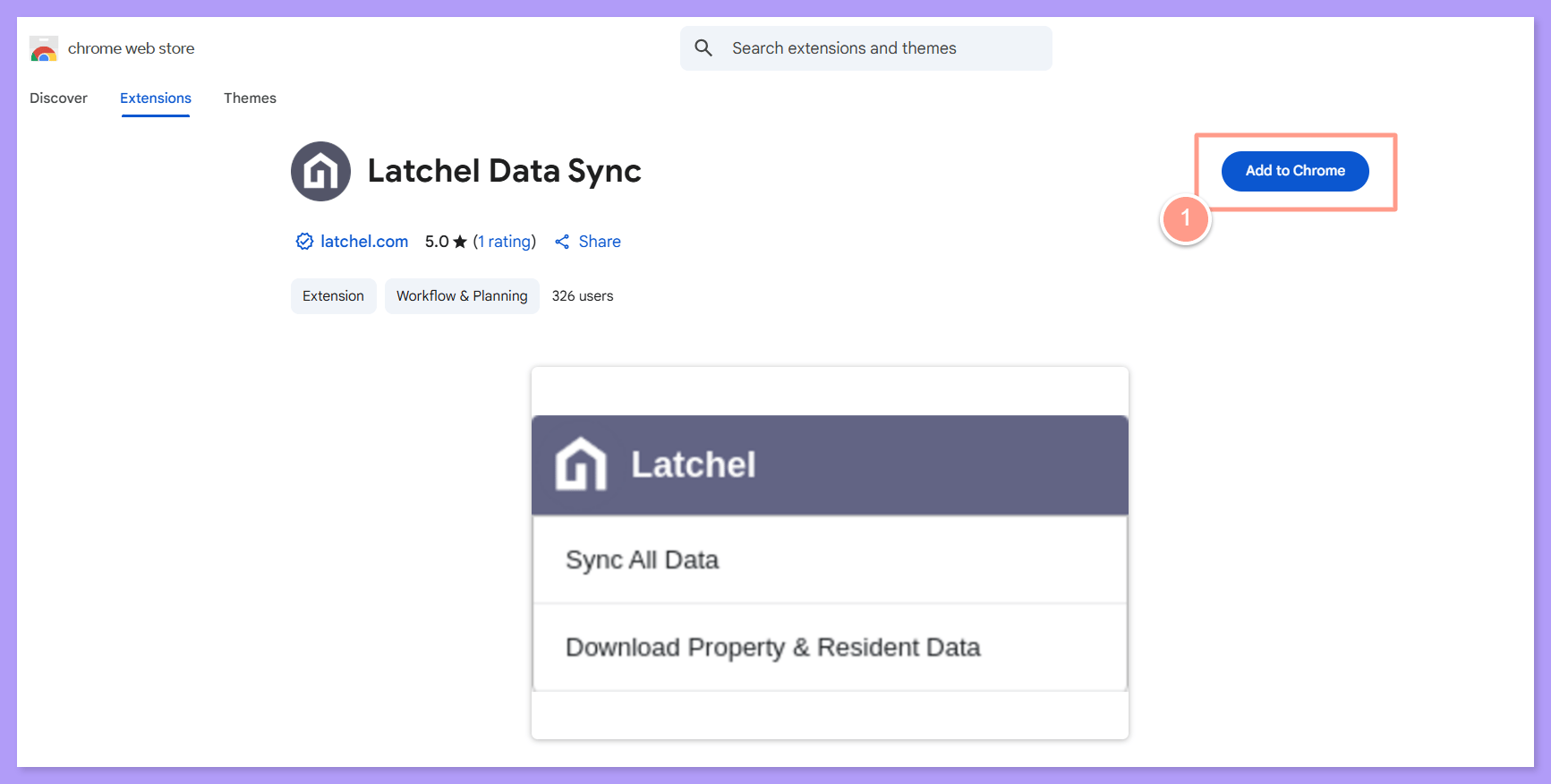
Latchel Data Sync Extension
Open the Chrome Web Store page for the latest version.
Click Add extension
Chrome asks you to confirm. Click Add extension.
Pin the extension to your toolbar
New extensions are hidden at first. Click the puzzle-piece icon, then click the pin next to Latchel Data Sync. The Latchel icon now stays to the right of your address bar.
Open the extension and log in
Click the Latchel icon and log in with your Latchel email and password.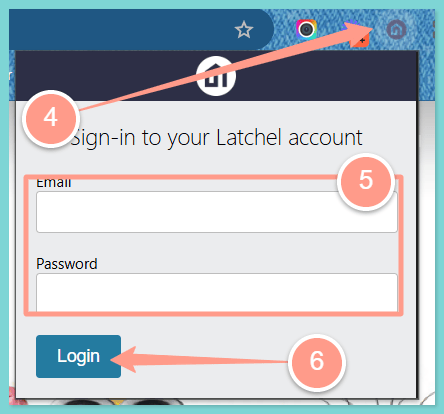
Log back in and sync again
Log back in to your property management software. The extension syncs on its own: work orders every 15 minutes, and property and tenant data once a day. To sync right away, open the Latchel extension and click the link to run a manual sync.
Still Having Issues After Updating?
If the sync still isn’t working, report it to Latchel by following the steps in the guide below:Navigating the Latchel Data Sync Extension | How to Report a Problem
Follow these steps to report issues with Latchel after updating your extension.