
- Global or company settings
- Portfolio
- Property
How to Prioritize a Preferred Service Provider for Multiple Skills
Click People then Service Providers
From the main dashboard page, click on People then Service Providers.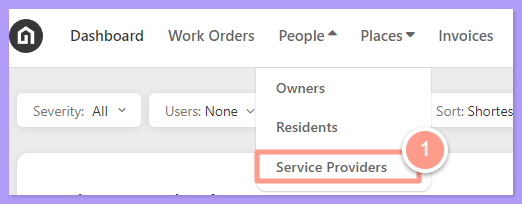
Choose Prioritize for multiple skills
Once on the Service Provider page, under Categories & Prioritization, click on the ellipsis and choose Prioritize Service Provider for multiple skills.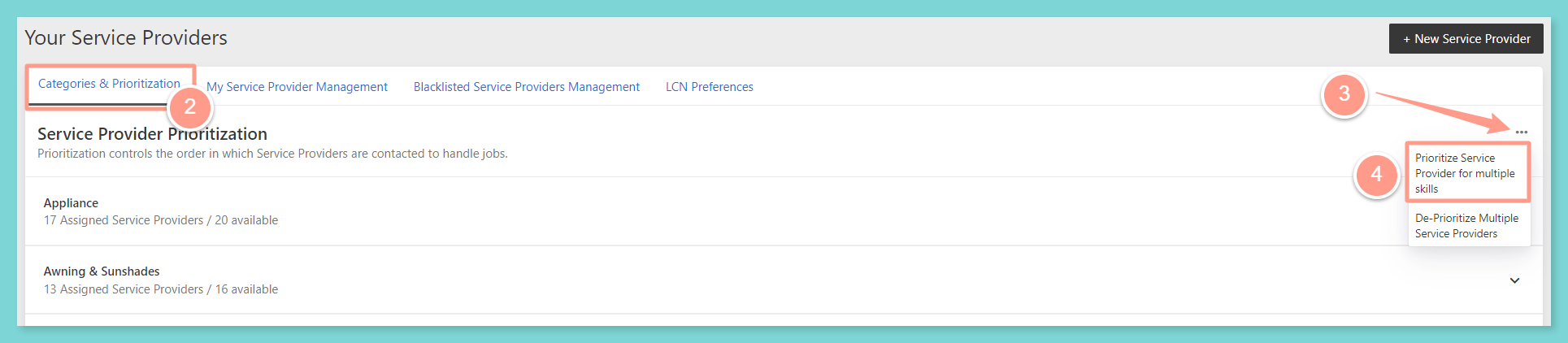
Choose the service provider
A pop-up box will appear, choose the service provider that you wish to be modified by searching the name of the preferred service provider or scrolling through the list.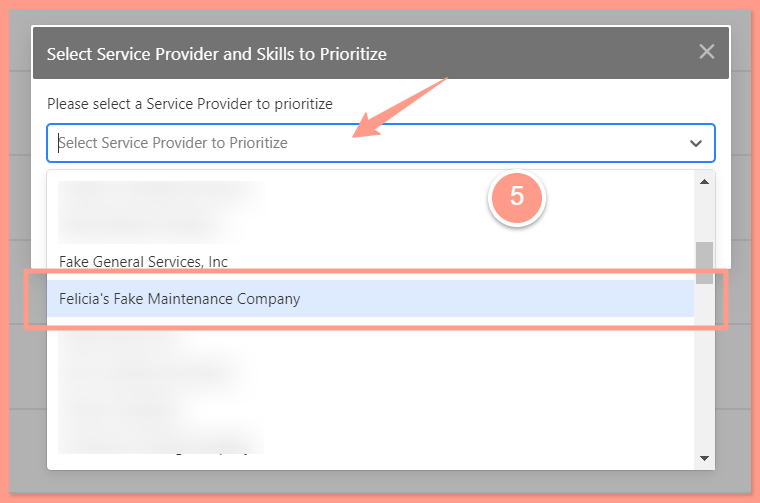
Click Check All Categories
Previously, all categories must be checked one by one to add the skills to the service provider. Say goodbye to this because there is now an option to Check All Categories. This saves more time and effort in updating, changing, or managing your preferred service provider’s skills. Simply click Check All Categories and viola! All subskills will be checked!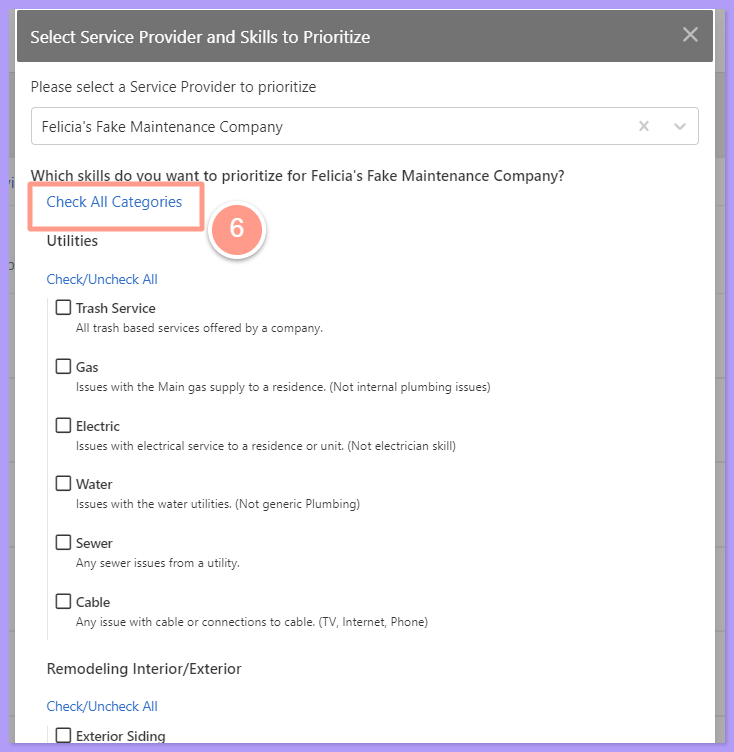
Choose the priority level
Next, choose how you want the preferred service provider to be prioritized at the level:
- to the TOP priority for all of their skill category
- to the BOTTOM priority for all of their skill category
Click Prioritize
Click Prioritize to save the changes you made.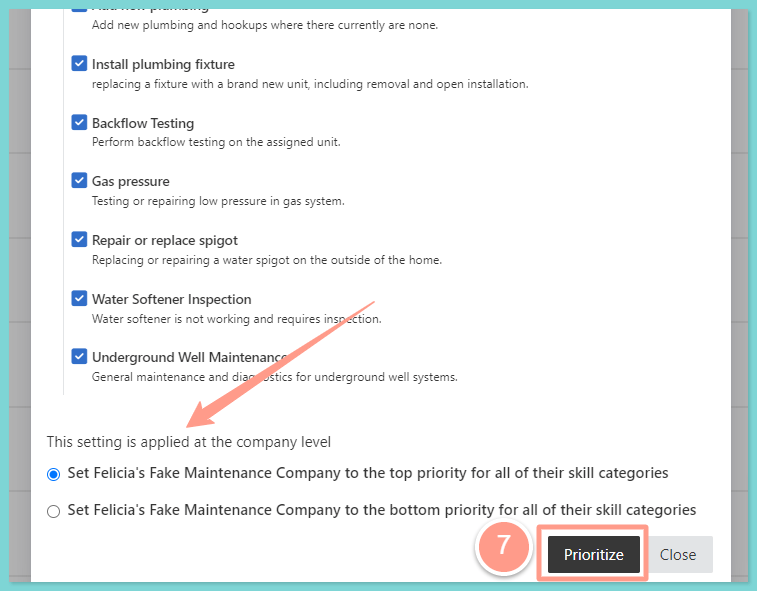
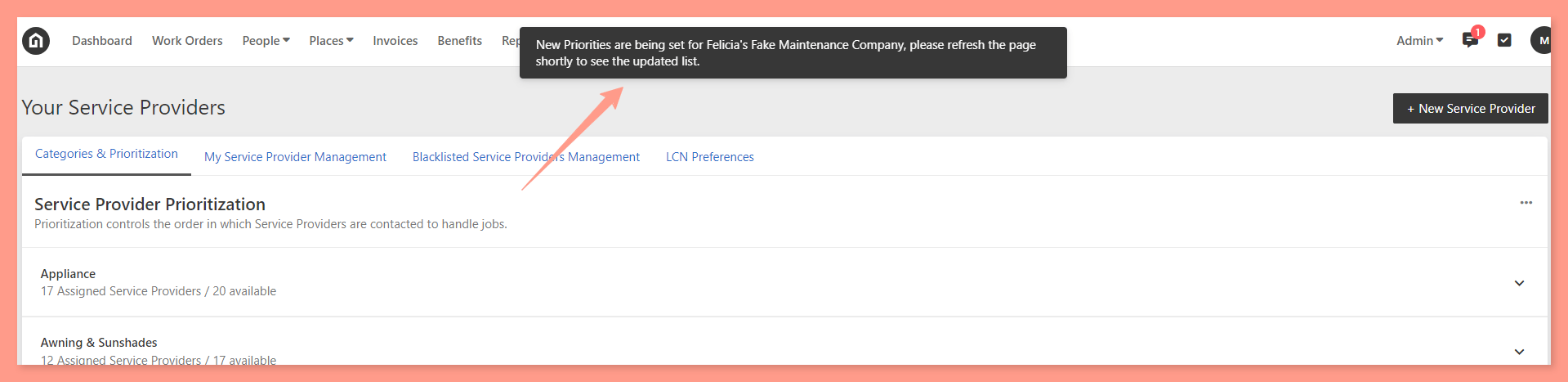
NOTE: Prioritizing service providers for multiple skills can be done via Property Manager Profile and Admin access on Company, Property, and Portfolio levels. As an admin or property manager user, it is best to check first the inheritance setup to understand where the changes could be applied.